
Getting started.
Start with a match. Add a phone, camera and microphone when you’re ready.
Install OcheCast
- Download the Windows beta and open the installer.
- Follow the installation prompts, then launch OcheCast. You don’t need to install OBS separately.
- If Windows asks about network access, allow OcheCast on private networks so your phone can connect.
Start a match
- From Home, choose New match.
- Enter two different player names, choose 301 or 501, and set the number of legs or sets and who throws first.
- Select Start match. Standard matches are straight in, double out.
- Use Turn total for a visit’s score, or Dart by dart for individual throws. Use Undo to correct the most recent entry.
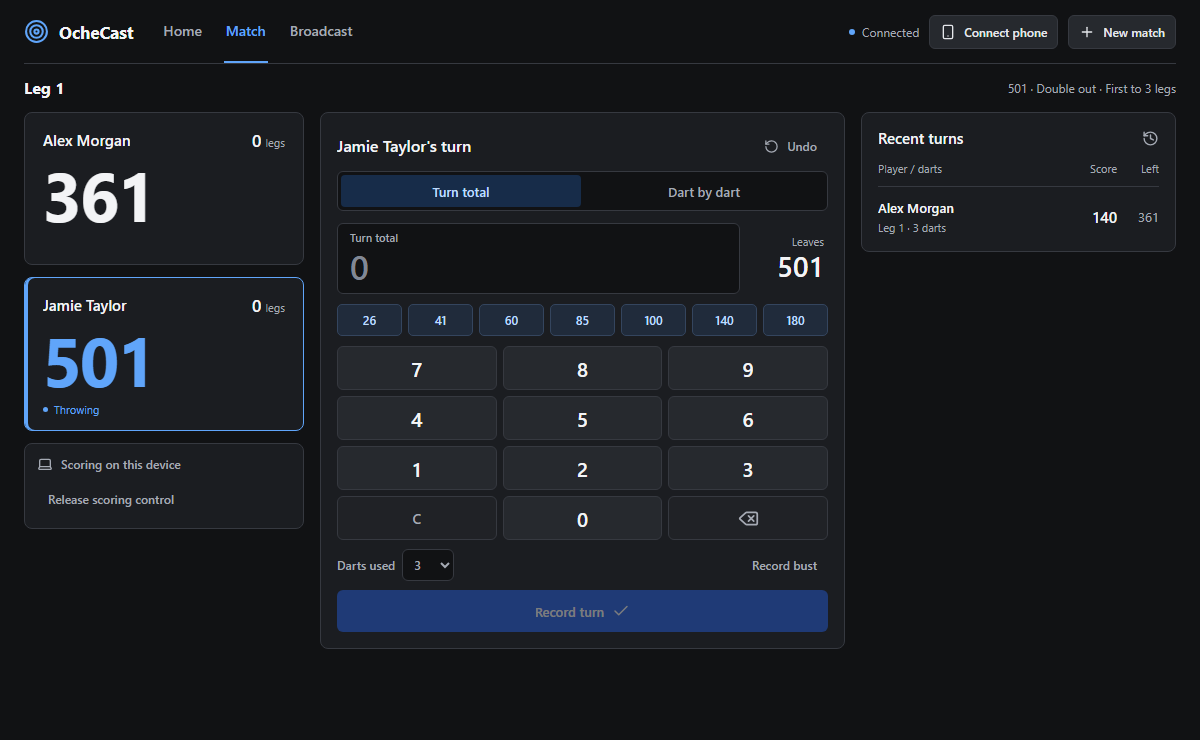
Going Home keeps your match. Use Resume match to return, or View last result after it finishes.
Connect your phone
- Connect your phone and laptop to the same private network. Keep OcheCast open on the laptop.
- Choose Connect phone on the desktop and scan the QR code with your phone’s camera. If there are several network addresses, choose the one your phone can reach.
- On the desktop, select Let the phone take control.
- On your phone, select Score on this device. Only one device controls scoring at a time.
Use Take over scoring on the desktop whenever you need control back.
Remove access from old phones
Open Connect phone → Reset phone pairings → Disconnect phones. Old links and QR codes stop working, and scoring returns to the desktop. Your match and overlay remain intact. Scan the new QR code to pair again.
Set up a league fixture
Choose New fixture from Home. Add your teams and players, then choose a saved format or arrange your singles and doubles games.
The starter format is six singles followed by two doubles. You can change the order, scoring rules and win points, and save teams and formats for another night.
You only need the next game’s line-up to get started. Check each result before moving on: starting the next game finalizes the previous result and clears its undo history.
Set up the camera
- Open Broadcast → Open broadcast controls in the Windows app. The first launch may take a little longer.
- Select your camera under Camera. Use Refresh cameras if you plugged it in after opening the controls.
- Choose an available resolution and framing. Fit — whole image keeps the entire picture; Fill — crop edges fills the frame.
- Check Program preview. Your scoreboard is added automatically.
The preview refreshes every few seconds. Camera off releases the camera for other apps.
Choose a microphone
In Broadcast, go to Microphones & desktop audio → Microphone device and select the microphone you want. Use Refresh microphones for a newly connected device.
Check mute and volume before recording or streaming. Changing microphones keeps those settings.
Choose where to record
- Under Local recording, select Choose folder and pick an existing folder with enough free space.
- Choose Start recording when you’re ready, then stop it when finished.
- Select Open recordings folder to find and play back your file.
You can change the folder when recording is stopped. Changing it doesn’t move earlier recordings.
When you close OcheCast during a recording or stream, it asks before stopping the output. Let it finish closing so the recording has time to finalize.
Set up streaming
Set up your event and its visibility in YouTube Studio first. In OcheCast’s Broadcast controls, choose your streaming destination and enter its stream key. Keep that key private.
Saving the destination does not start the stream. Check your camera, sound and event visibility before choosing Start streaming and confirming. OcheCast doesn’t sign in to YouTube or create events for you.
Get updates
Open Software updates using the download icon in the app’s header. Choose Check for updates, then Download update.
You can keep using the app while it downloads. Choose Install and restart at a convenient moment. OcheCast checks for updates automatically, but installing and restarting is your choice.
Troubleshooting
My phone can’t connect
Check that both devices are on the same private network, OcheCast is open, and Windows Firewall permits it on private networks. Guest Wi-Fi can block devices from reaching each other. Restart OcheCast after changing networks and scan the current QR code.
My phone can see the match but can’t score
Release scoring control on the desktop, then choose Score on this device on the phone. If pairings were reset, close the old page and scan the new QR code.
My camera or microphone is missing
Check the connection and Windows camera/microphone permissions. Close other apps using the camera, then use Refresh cameras or Refresh microphones in Broadcast.
I can’t record to my chosen folder
Choose an existing folder on a connected drive that your Windows account can write to. Check free space and stop any active recording before changing its location.
The app or update won’t start
Check you have the Windows x64 version, a working internet connection for downloads, and WebView2 installed. If an update download fails, retry it in Software updates. You can also download the current installer from this site.